Batch import
Bring an existing collection into your vault without adding every entity again. Importing is separate from searching a metadata provider: an import reads your saved library, including the personal history the source makes available.
Import your collection
- Open Import and choose a source.
- Enter your public profile or upload an export file, as prompted.
- Review the proposed additions. Choose a target type where needed, and leave out anything you do not want.
- Start the import.
Nothing is written until you approve the review. Entities detected as already in your library are skipped, including when you repeat an import.
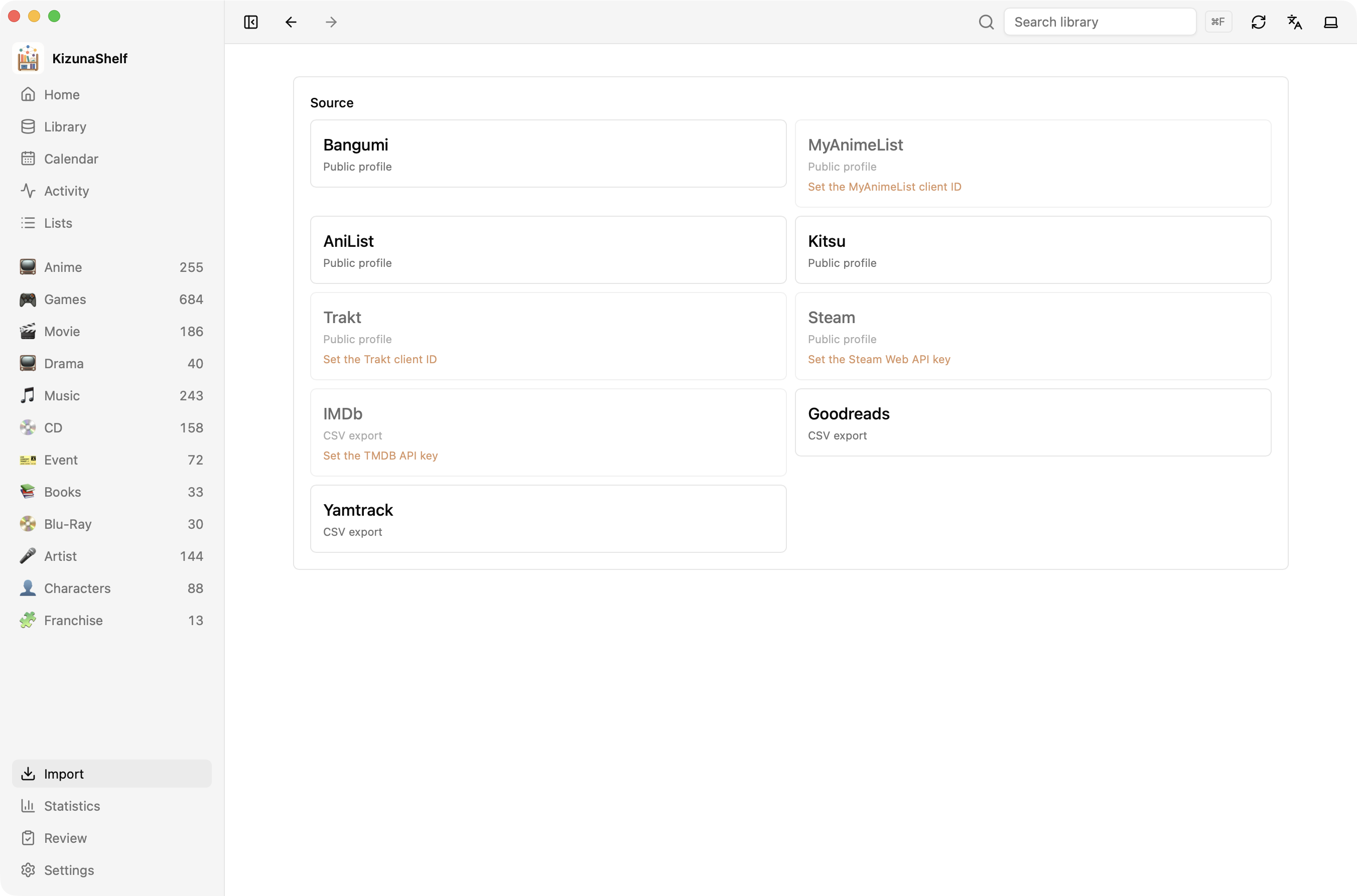
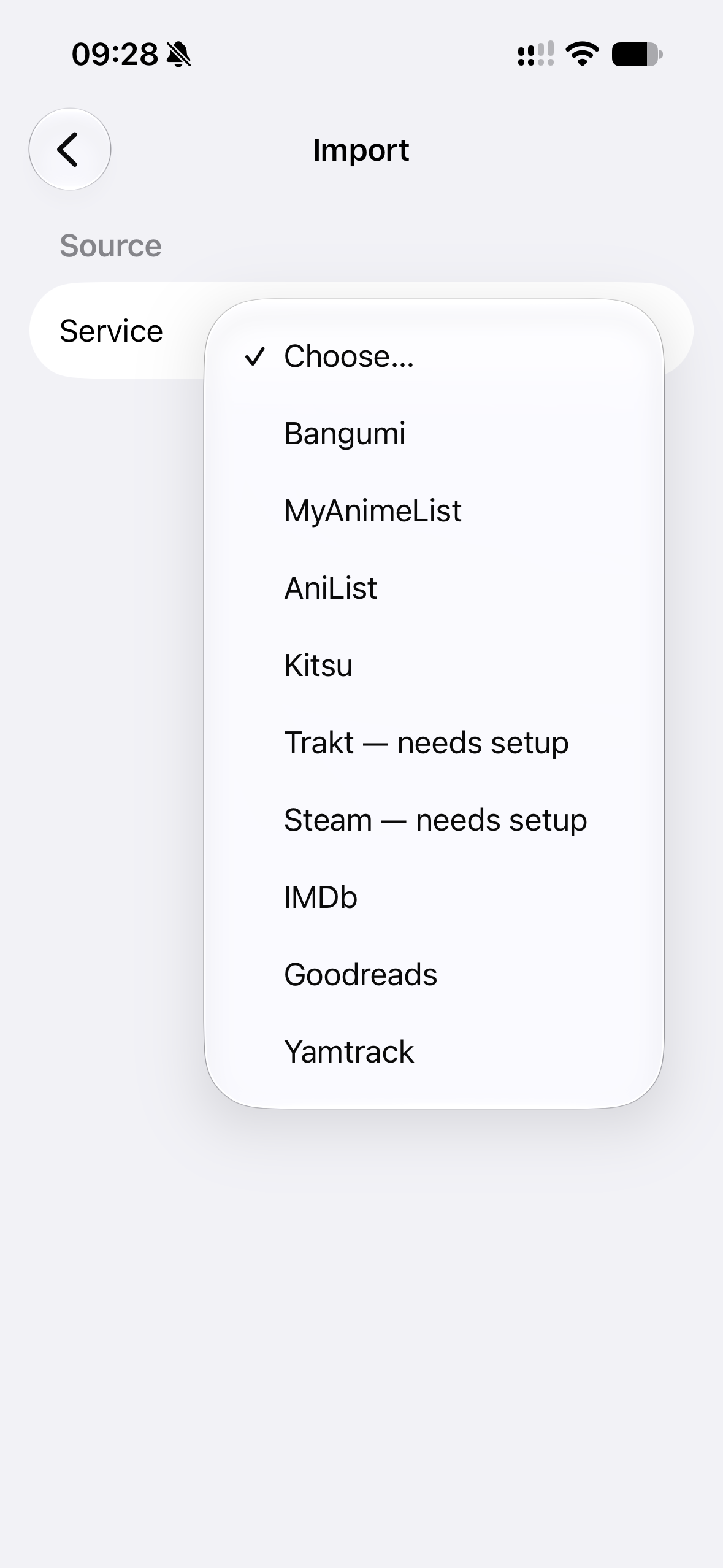
Sources
Profiles are supported for Bangumi, MyAnimeList, AniList, Kitsu, Trakt, and Steam. CSV exports are supported for IMDb, Goodreads, and Yamtrack.
Some sources need credentials, and the receiving type must have a matching provider connection. The app shows missing requirements. The import reference lists the input format, provider connection, and credentials for each source.
What comes across
You can include supported statuses, ratings, start and finish dates, notes, and episode progress. What appears depends on the source and the fields configured for your type. Review the available import options before starting.
Imported covers initially keep their online URLs. After importing, use Download remote covers to keep local copies.